
How to Compress Images Without Losing Quality: A Web Developer Guide
Images represent the majority of page weight. Learn the difference between lossy and lossless compression, next-gen WebP/AVIF formats, and how to compress assets locally.
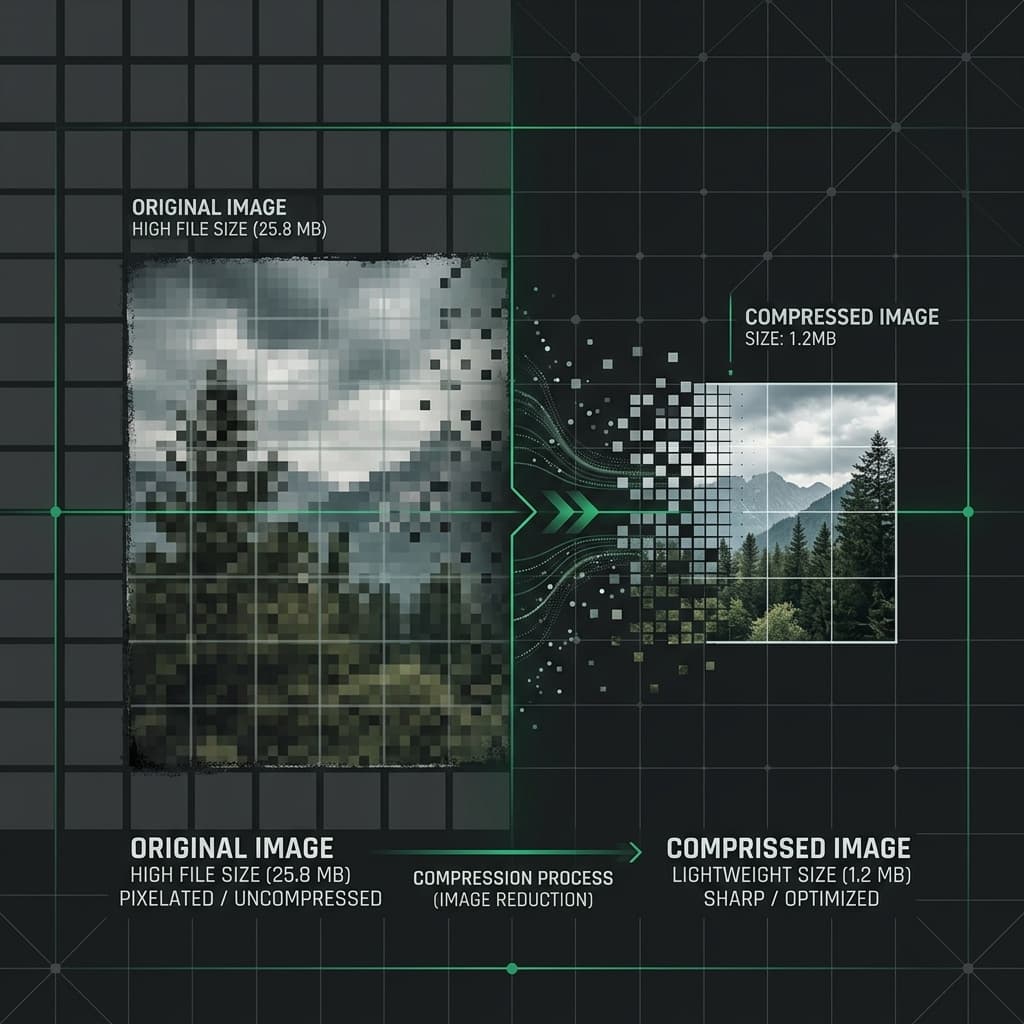
Why Image Optimization is the #1 Performance Win
The average web page is around 2MB to 3MB, and more than 60% of that weight is usually images. Slow loading times kill user experience and directly tank your SEO rankings.
If your website takes longer than 3 seconds to load, you lose up to 40% of your visitors. The easiest, most effective way to speed up your page load times is image compression.
But how do you compress images without making them look pixelated or blurry? Here is a developer guide to lossy and lossless compression.
Lossy vs. Lossless Compression
Understanding the difference between these two compression methods helps you select the right format for your project:
- Lossless Compression — Reduces file size without discarding any image data. The visual appearance remains identical down to the pixel. Format examples: PNG, WebP (lossless mode). Best for logos, vector graphics, and text-heavy illustrations.
- Lossy Compression — Reduces file size by removing non-essential image data that the human eye is unlikely to notice. It can reduce file sizes by up to 80%, but setting the quality too low results in compression artifacts. Format examples: JPEG, WebP. Best for photographs and complex colored graphics.
Choosing the Right Next-Gen Format (WebP & AVIF)
Modern web design demands next-generation formats:
| Format | Avg. Size reduction | Best Use Case |
|---|---|---|
| JPEG | Baseline | Fallback for older browsers |
| PNG | Baseline | Fallback for transparent images |
| WebP | 25% to 35% smaller than JPEG/PNG | Universal modern standard |
| AVIF | 50% smaller than JPEG | High-fidelity photorealism |
Converting images to WebP can yield a massive speedup. WebP supports both transparency (like PNG) and compression (like JPEG), making it the ultimate format for web developers.
How to Optimize Your Images Instantly
Instead of loading up heavy tools like Photoshop, you can use our free, secure Image Compressor. It runs entirely in your browser using the Canvas API, allowing you to compress JPEG, PNG, and WebP files in seconds with zero server uploads.
To ensure your optimized images display in the correct layout without jumping or causing Layout Shift (CLS), verify their proportions with our Aspect Ratio Calculator before placing them in your HTML image elements.
Try it free